


Add Script or a Folder to Your GitHub Repository
Git is a distributed version control system created by Linus Torvalds. It allows developers to manage code, track changes, and collaborate across teams with minimal friction. Combined with GitHub—a remote code hosting platform—you can sync your code securely to the cloud, share it, and even automate deployments.
If you’re working in DevOps, Git is not optional—it’s essential. Whether you’re managing automation scripts, infrastructure-as-code templates, or configuration files, Git helps you keep everything organized and versioned.
In this post, I’ll show you two common Git workflows that I personally use almost daily. These will help you upload either a single script or an entire folder to your GitHub repository using the command line. No fluff—just practical steps that work.
Why Use Git and GitHub?
- Version History: Keep track of every change.
- Collaboration: Work easily with teammates.
- Rollback Capability: Revert to previous versions with one command.
- Remote Backup: Store your code safely in the cloud.
- CI/CD Integration: Automate builds and deployments with GitHub Actions.
Prerequisites
Complete the following steps before working with Git and pushing files to GitHub.
Step 1: Install Git on Ubuntu
Install Git on your system first:
sudo apt update
sudo apt install git -y
Run the version command to confirm the installation:
git --versionIn my case output is:
git version 2.34.1Step 2: Configure Git (Username and Email)
Before using Git, configure your identity. This is used in all your commits:
git config --global user.name "Your Name"
git config --global user.email "you@example.com"
You can verify the configuration:
git config --global --listStep 3: Clone Your GitHub Repository
Now, clone your GitHub repository to your local machine. This will create a local copy where you can add your scripts or folders.
cd ~
git clone https://github.com/defence-dev/my-scripts.git
cd my-scripts
Now you’re inside the working directory of your project.
After this setup, you can start adding files or folders to this local repository and push the changes to GitHub. Below are two real-world scenarios showing exactly how I do that in my DevOps workflows.
Real DevOps Use Cases
As a DevOps engineer, I frequently manage and share scripts or tools between machines and teammates. Here are two real-life examples from my daily workflow.
Scenario 1: Add a Single Script to a GitHub Repository
Goal: Upload the script from: /home/ubuntu/local_scripts/monitoring_ready__for_git.sh to GitHub at: my-scripts/linux/monitoring/
Step 1: Copy the Script to the Repository Folder
Navigate to your cloned Git repository and create the required folder structure.
cd ~/my-scripts
mkdir -p linux/monitoring
cp /home/ubuntu/local_scripts/monitoring_ready__for_git.sh linux/monitoring/
Step 2: Check File Status in Git
Run git status to see untracked changes:
On branch master
Your branch is up to date with 'origin/master'.

Untracked files:
  (use "git add <file>..." to include in what will be committed)
        linux/monitoring/monitoring_ready__for_git.sh

nothing added to commit but untracked files present (use "git add" to track)
Step 3: Add the Script to Git Staging Area
Track the new script with Git:
git add linux/monitoring/monitoring_ready__for_git.shStep 4: Commit the Change
Save the snapshot of the change with a message/comment:
git commit -m "Add monitoring_ready__for_git.sh script"Output of the command:
[master e793fde] Add monitoring_ready__for_git.sh script
 1 file changed, 1 insertion(+)
 create mode 100644 linux/monitoring/monitoring_ready__for_git.sh
Step 5: Push the Commit to GitHub
Send the commit to the remote repository:
???? If your default branch is named differently (e.g. master), adjust the command accordingly:git push origin master
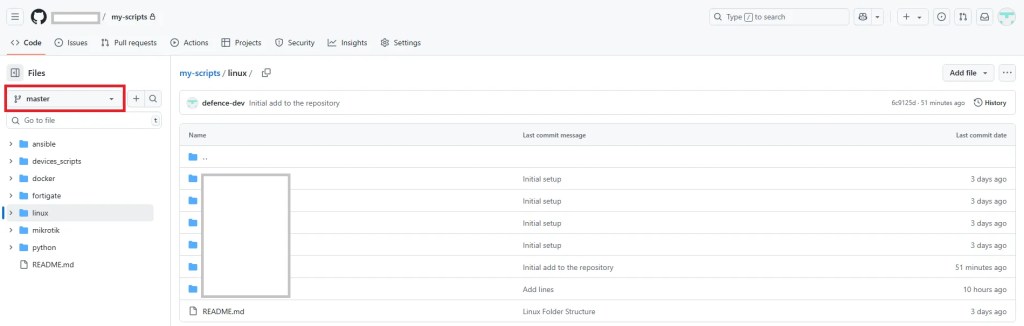
git push origin masterType your username and password:
Username for 'https://github.com': username
Password for 'https://username@github.com':
Enumerating objects: 8, done.
Counting objects: 100% (8/8), done.
Delta compression using up to 4 threads
Compressing objects: 100% (4/4), done.
Writing objects: 100% (5/5), 458 bytes | 114.00 KiB/s, done.
Total 5 (delta 3), reused 0 (delta 0), pack-reused 0
remote: Resolving deltas: 100% (3/3), completed with 3 local objects.
To https://github.com/username/my-scripts.git
   6c9125d..e793fde  master -> master
Scenario 2: Add a Full Folder to a GitHub Repository
Goal:
Copy the entire folder from:/home/ubuntu/shared_libs/into your GitHub repository under: my-scripts/shared_libs/
Step 1: Copy the Folder into the Repository
Navigate to your local repository and copy the entire folder.
cd ~/my-scripts
cp -r /home/ubuntu/shared_libs/ .
This creates my-scripts/shared_libs/ with all its contents.
Verify the Folder Structure
List the contents to confirm the copy:
ls shared_libs/Make sure all files and subfolders are present.
Step 2: Check Git Status
Check which files are new and untracked:
git statusYou should see all files from shared_libs/ listed as untracked.
Step 3: Add the Entire Folder to Git
Track the folder and its contents:
cd my-scripts/shared_libs/
git add .
You can use also:
git add shared_libs/Step 4: Commit the Changes
Create a clear and descriptive commit:
git commit -m "Add shared_libs folder"Step 5: Push to GitHub
Send the changes to your remote repository:
git push origin masterConclusion & Final Tips
Using Git to manage your scripts and folders keeps your work organized and safe. Follow the steps carefully to avoid mistakes and maintain a clean repository.
Final Tips:
- Use
git statusoften to review changes before committing. - Create and maintain a
.gitignorefile to exclude files you don’t want in the repo—like logs, temp files, or binaries. - Always verify the correct GitHub repository URL and target branch before pushing your changes.
With these practices, your Git workflow will be smooth and efficient.
If you want to take your Git workflow to the next level, check out my detailed guide on organizing Git repositories: My Way to Organize Git Repository
This post dives deeper into best practices for structuring repositories, naming conventions, and keeping your projects scalable and easy to maintain.


